Call Session View #
When viewing any of the call list reports, an additional call session view can be accessed which provides clear details of each telephone call.
A telephone call (session) can involve multiple segments which can in turn involve multiple users/devices on the system (connections).
info
For more information on the difference between call sessions, segments and connections, please refer to the Call Segmentation section.
Accessing the Session View #
The segment view for a call can be accessed by clicking the link on the first column of a call within the report:
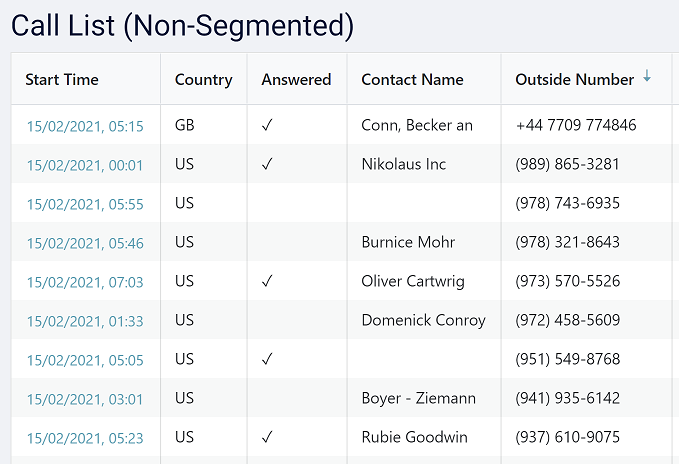
The 'Call Session' view will then be displayed. Each segment of the call is clearly depicted on a time line making it easy to visualize the life of the call. The example call below shows the initiator of the call on the left, followed by a single segment where the call was offered to, but not answered by 'Demo User 1'. The call ends normally

The image below shows a 2 segment call which first rings a queue before being overflowed to 'Demo User 1'. Each of the segments of the call (the first at the queue and the second after it overflows to Demo User 1) can be selected on the timeline. The details of the call segment will then be displayed below.

Call Data #
The call data tab shows information about the selected segment,
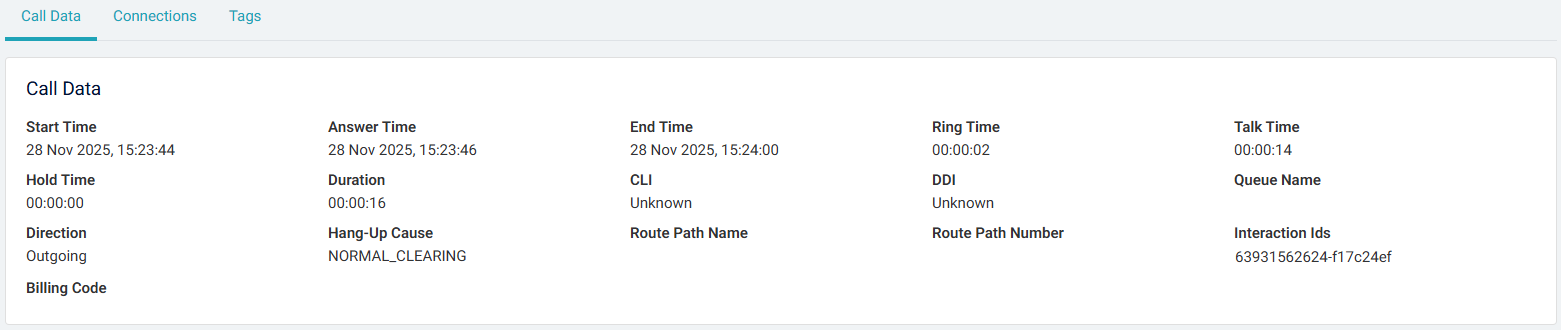
The image above shows the connections involved in the initial segment and call such as Caller ID, number dialed, ring time, talk time etc.
info
If there is only 1 call segment, it will be automatically selected.
Connections #
The connections tab shows all the devices involved in the selected segment. This also shows information about the status of the connections, displaying when and for how long they were 'Parked', 'Ringing', 'Talking' or 'On Hold'.
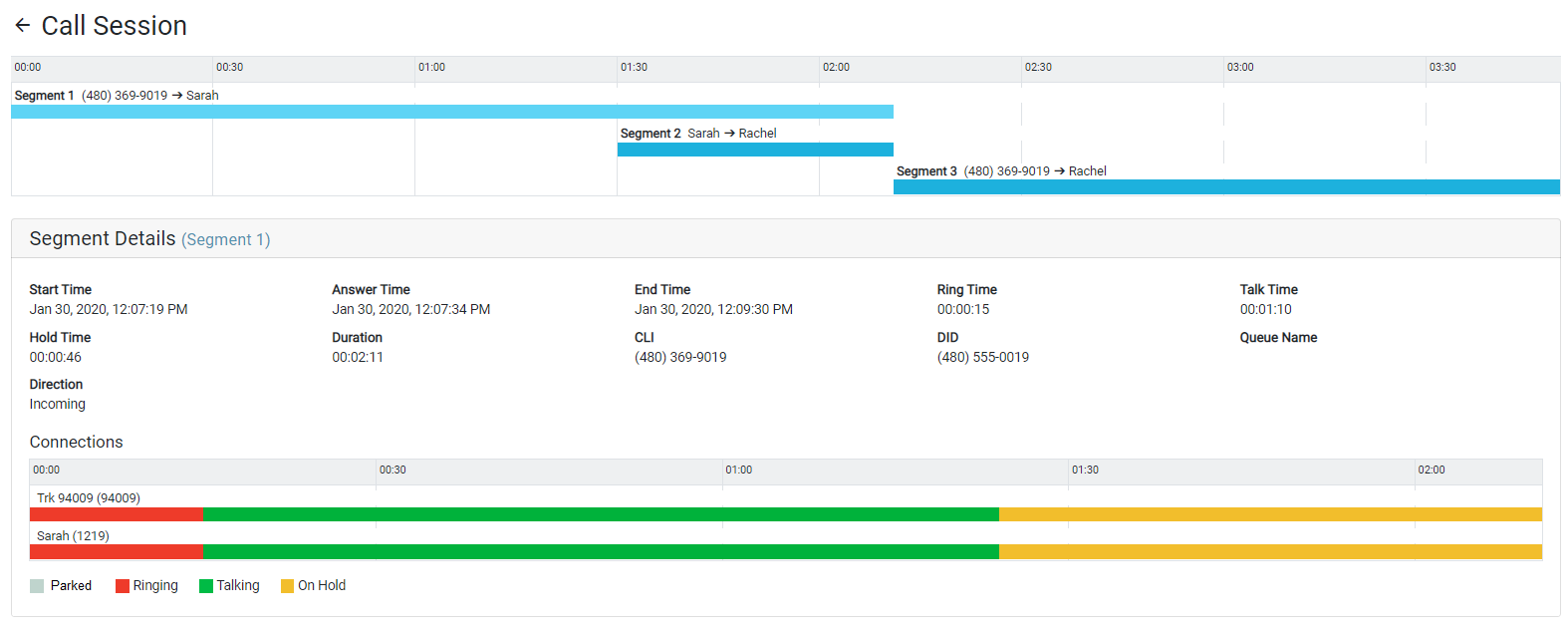
In examples of calls which have be presented through a 'Queue' or 'Hunt Group', each poll attempt at a user/agent will be shown here in the connections tab.
info
A user can have more than one connection in a call segment, for example if they have multiple devices that ring before the call is answered.
Call Tag Information #
If the call session being viewed has been tagged with any of the configured tag types, a Tag Data section will be displayed.

This tag section will displayed all the tags which have been assigned to the call. If any of the tags are of the Link Record type, clicking the tag should open a new browser tab/window to display the linked CRM or contact record.
Recording Playback #
If the communications platform has been configured to record the calls and access to the recordings is available, the recordings' details will be displayed below the segment breakdown. The image below shows 2 recordings for the single segment call. A recording has been made on each of the connections involved in the call. Depending on the configuration of the communications platform, the number of recordings available will vary.
For more information, refer to the Call Recording section.
note
A user must have been assigned the Recording Playback role to be able to access recordings.
info
The recording time-line may span the whole of the call if the extended timing information from the communications platform is no longer available for the call.
note
If using ~.Dimensions.~ on a 3CX system, recordings are not available for playback until they have been archived. Archiving is usually and overnight process.